Insert a picture to custom pages into existing DOCX document using C# and .NET
In this example we'll insert the picture to 1st and 3rd pages of DOCX document into specific positions.
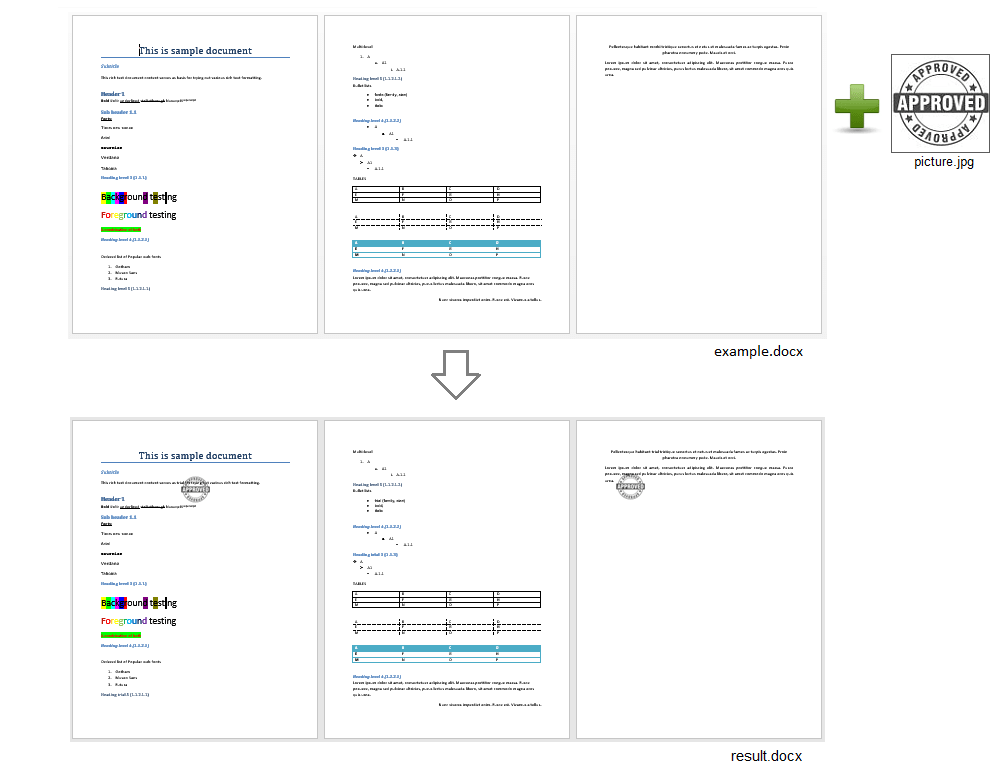
To insert the image on the first page of the document, we used this code:
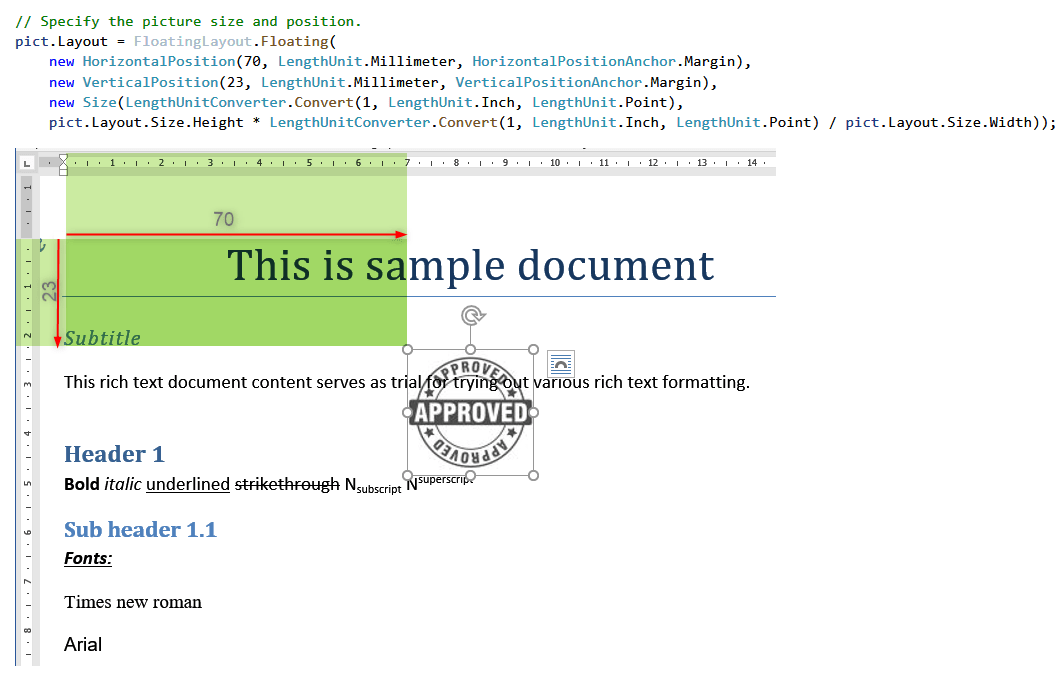
Complete code
 GitHub
using System.Linq;
using System.IO;
using SautinSoft.Document;
using SautinSoft.Document.Drawing;
namespace Example
{
class Program
{
static void Main(string[] args)
{
// Get your free 30-day key here:
// https://sautinsoft.com/start-for-free/
InsertPictureToCustomPages();
}
/// <summary>
/// Insert a picture to custom pages into existing DOCX document.
/// </summary>
/// <remarks>
/// Details: https://sautinsoft.com/products/document/help/net/developer-guide/insert-picture-jpg-image-to-custom-docx-page-net-csharp-vb.php
/// </remarks>
static void InsertPictureToCustomPages()
{
// In this example we'll insert the picture to 1st and 3rd pages
// of DOCX document into specific positions.
string inpFile = @"..\..\..\example.docx";
string outFile = @"Result.docx";
string pictFile = @"..\..\..\picture.jpg";
DocumentCore dc = DocumentCore.Load(inpFile);
DocumentPaginator dp = dc.GetPaginator();
// Step 1: Put the picture to 1st page.
// Create the Picture object from Jpeg file.
Picture pict = new Picture(dc, pictFile);
// Specify the picture size and position.
pict.Layout = FloatingLayout.Floating(
new HorizontalPosition(70, LengthUnit.Millimeter, HorizontalPositionAnchor.Margin),
new VerticalPosition(23, LengthUnit.Millimeter, VerticalPositionAnchor.Margin),
new Size(LengthUnitConverter.Convert(1, LengthUnit.Inch, LengthUnit.Point),
pict.Layout.Size.Height * LengthUnitConverter.Convert(1, LengthUnit.Inch, LengthUnit.Point) / pict.Layout.Size.Width));
// Put the picture behind the text
(pict.Layout as FloatingLayout).WrappingStyle = WrappingStyle.BehindText;
// Find the 1st Element in the 1st page.
Element e1 = dp.Pages[0].GetElementFrames().FirstOrDefault(e => e.Element is Run).Element;
// Insert the picture at this Element.
e1.Content.End.Insert(pict.Content);
// Step 2: Put the picture to 3rd page.
if (dp.Pages.Count >= 3)
{
// Find the 1st Element on the 3rd page.
Element e2 = dp.Pages[2].GetElementFrames().FirstOrDefault(e => e.Element is Run).Element;
// Create another picture
Picture pict2 = new Picture(dc, pictFile);
pict2.Layout = FloatingLayout.Floating(
new HorizontalPosition(10, LengthUnit.Millimeter, HorizontalPositionAnchor.Margin),
new VerticalPosition(20, LengthUnit.Millimeter, VerticalPositionAnchor.Margin),
new Size(LengthUnitConverter.Convert(1, LengthUnit.Inch, LengthUnit.Point),
pict2.Layout.Size.Height * LengthUnitConverter.Convert(1, LengthUnit.Inch, LengthUnit.Point) / pict2.Layout.Size.Width)
);
(pict2.Layout as FloatingLayout).WrappingStyle = WrappingStyle.BehindText;
// Insert the picture at this Element.
e2.Content.End.Insert(pict2.Content);
}
// Save the document as new DOCX and open it.
dc.Save(outFile);
System.Diagnostics.Process.Start(new System.Diagnostics.ProcessStartInfo(outFile) { UseShellExecute = true });
}
}
}Imports System.Linq
Imports System.IO
Imports SautinSoft.Document
Imports SautinSoft.Document.Drawing
Namespace Example
Friend Class Program
Shared Sub Main(ByVal args() As String)
InsertPictureToCustomPages()
End Sub
''' Get your free 30-day key here:
''' https://sautinsoft.com/start-for-free/
''' <summary>
''' Insert a picture to custom pages into existing DOCX document.
''' </summary>
''' <remarks>
''' Details: https://sautinsoft.com/products/document/help/net/developer-guide/insert-picture-jpg-image-to-custom-docx-page-net-csharp-vb.php
''' </remarks>
Private Shared Sub InsertPictureToCustomPages()
' In this example we'll insert the picture to 1st and 3rd pages
' of DOCX document into specific positions.
Dim inpFile As String = "..\..\..\example.docx"
Dim outFile As String = "Result.docx"
Dim pictFile As String = "..\..\..\picture.jpg"
Dim dc As DocumentCore = DocumentCore.Load(inpFile)
Dim dp As DocumentPaginator = dc.GetPaginator()
' Step 1: Put the picture to 1st page.
' Create the Picture object from Jpeg file.
Dim pict As New Picture(dc, pictFile)
' Specify the picture size and position.
'INSTANT VB WARNING: Instant VB cannot determine whether both operands of this division are integer types - if they are then you should use the VB integer division operator:
pict.Layout = FloatingLayout.Floating(New HorizontalPosition(70, LengthUnit.Millimeter, HorizontalPositionAnchor.Margin), New VerticalPosition(23, LengthUnit.Millimeter, VerticalPositionAnchor.Margin), New Size(LengthUnitConverter.Convert(1, LengthUnit.Inch, LengthUnit.Point), pict.Layout.Size.Height * LengthUnitConverter.Convert(1, LengthUnit.Inch, LengthUnit.Point) / pict.Layout.Size.Width))
' Put the picture behind the text
TryCast(pict.Layout, FloatingLayout).WrappingStyle = WrappingStyle.BehindText
' Find the 1st Element in the 1st page.
Dim e1 As Element = dp.Pages(0).GetElementFrames().FirstOrDefault(Function(e) TypeOf e.Element Is Run).Element
' Insert the picture at this Element.
e1.Content.End.Insert(pict.Content)
' Step 2: Put the picture to 3rd page.
If dp.Pages.Count >= 3 Then
' Find the 1st Element on the 3rd page.
Dim e2 As Element = dp.Pages(2).GetElementFrames().FirstOrDefault(Function(e) TypeOf e.Element Is Run).Element
' Create another picture
Dim pict2 As New Picture(dc, pictFile)
'INSTANT VB WARNING: Instant VB cannot determine whether both operands of this division are integer types - if they are then you should use the VB integer division operator:
pict2.Layout = FloatingLayout.Floating(New HorizontalPosition(10, LengthUnit.Millimeter, HorizontalPositionAnchor.Margin), New VerticalPosition(20, LengthUnit.Millimeter, VerticalPositionAnchor.Margin), New Size(LengthUnitConverter.Convert(1, LengthUnit.Inch, LengthUnit.Point), pict2.Layout.Size.Height * LengthUnitConverter.Convert(1, LengthUnit.Inch, LengthUnit.Point) / pict2.Layout.Size.Width))
TryCast(pict2.Layout, FloatingLayout).WrappingStyle = WrappingStyle.BehindText
' Insert the picture at this Element.
e2.Content.End.Insert(pict2.Content)
End If
' Save the document as new DOCX and open it.
dc.Save(outFile)
System.Diagnostics.Process.Start(New System.Diagnostics.ProcessStartInfo(outFile) With {.UseShellExecute = True})
End Sub
End Class
End Namespace
If you need a new code example or have a question: email us at support@sautinsoft.com or ask at Online Chat (right-bottom corner of this page).