How to perform OCR and get an editable document using Tesseract and SautinSoft.Document in .NET
Hello community.
My name is Oliver and I am an expert in converting document formats. In this article, I'll show you how you can readily and easily convert any Picture or scanned PDF into editable text.
Introduce:
I want to talk about OCR using the free library from Google "Tesseract" and the commercial library "Document .Net" from SautinSoft. What is the scanned images and OCR, you can learn more on the Internet
( Optical character recognition - Wikipedia).
As a starting point, let's try to convert a picture with some text into an editable document. With an editable document you can do whatever you want: edit, copy, paste and save in other formats.
The SautinSoft.Document.Net library is good for reading, saving and editing documents in various formats such as PDF, DOCX, HTML and RTF.
So, let's get started.
For a start,  Tesseract is written in C++, and SautinSoft.Document in C#, the choice between writing the wrapper itself or using the existing one was decided by itself. Big thanks to Charles Weld for the .NET wrapper for tesseract-ocr.
To make you .NET app work with OCR, you’ve to add the following references from Nuget:
- SautinSoft.Document, v. 5.1 or up.
- Tesseract, v 4.1 or up.
How it works (image to pdf):
Let's create a simple .NET Console Application, that will transform an image with the scanned text to a PDF document with editable text.
Create a console application using Visual Studio or its equivalent for Linux, macOS.
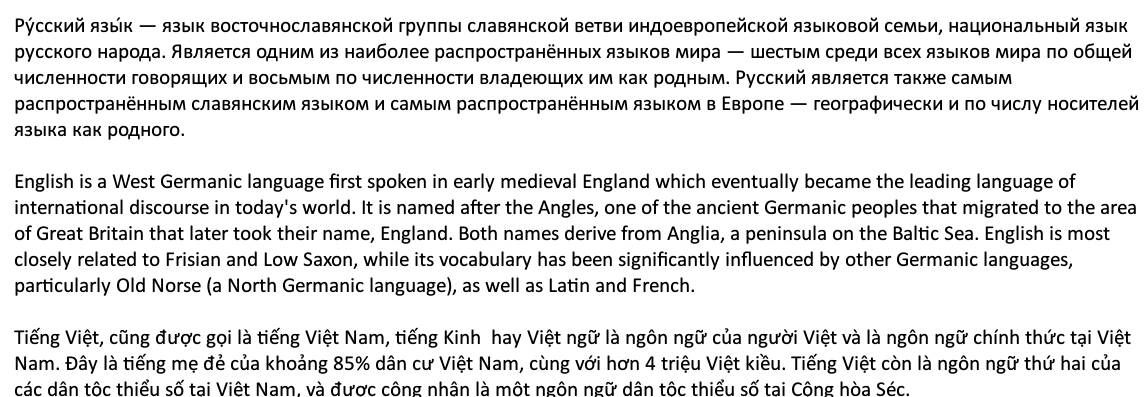
My scanned document (scanned_document.png) contains text in English, Russian and Vietnamese. The text contains brief information about the features of the languages. The image content is shown in the picture below:
Using Nuget Package Manager, add the dependencies that I talked about earlier. Make sure your project contains:
using SautinSoft;
using SautinSoft.Document;

Specify the paths to the scanned and resulting files.
string scannedFile = @"d:\Download\scanned_document.png";
string editableFile = @"d:\Download\editable_document.pdf";
Using the ImageLoadOptions (ilo), specify the path where the language data files are stored. Language packs can be
downloaded here.
| Lang Code | Language | 4.0 traineddata |
|---|---|---|
| afr | Afrikaans | afr.traineddata |
| amh | Amharic | amh.traineddata |
| ara | Arabic | ara.traineddata |
| asm | Assamese | asm.traineddata |
| aze | Azerbaijani | aze.traineddata |
| aze_cyrl | Azerbaijani - Cyrillic | aze_cyrl.traineddata |
| bel | Belarusian | bel.traineddata |
| ben | Bengali | ben.traineddata |
| bod | Tibetan | bod.traineddata |
| bos | Bosnian | bos.traineddata |
| bul | Bulgarian | bul.traineddata |
| cat | Catalan; Valencian | cat.traineddata |
| ceb | Cebuano | ceb.traineddata |
| ces | Czech | ces.traineddata |
| chi_sim | Chinese - Simplified | chi_sim.traineddata |
| chi_tra | Chinese - Traditional | chi_tra.traineddata |
| chr | Cherokee | chr.traineddata |
| cym | Welsh | cym.traineddata |
| dan | Danish | dan.traineddata |
| deu | German | deu.traineddata |
| ... | ||
There are a lot of languages and data files for them, and which you choose will affect to the recognizing results. Here is an example of using Vietnamese language:
                   ilo.TesseractLanguage = "vie";
// Path for the folder with language files
// During the operation of your application, temporary files will be created,
// which are necessary for the full operation of the application.
// You must grant permissions to write to this folder. This is especially true for ASP.Net applications on IIS.
ilo.TesseractDataPath = @"d:\download\tessdata";
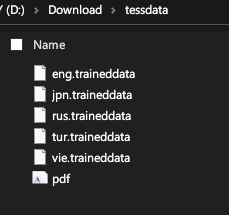
It is necessary to download the data file for Vietnamese vie.traineddata and place it in the ilo.TesseractDataPath folder = @ “path for languages“; If you want to recognize several languages, you can list them with symbol plus “+”: vie+eng
Notice: You need to download the required language file yourself and put it in “\tessdata” folder.
For example:
- English (eng) - eng.traineddata
![]()
- German (deu) - deu.traineddata
![]()
- Russian (rus)- rus.traineddata
![]()

using System;
using SautinSoft;
using SautinSoft.Document;

namespace Tesseract
{
    class Program
    {
        ///
        /// Convert scanned document in editable (file to file).
        ///
///
        /// Details: https://sautinsoft.com/products/document/help/net/developer-guide/ocr.php
        ///
        static void Main(string[] args)
        {
            string scannedFile = @"d:\Download\scanned_document.png";
            string editableFile = @"d:\Download\editable_document.pdf";

            // ImageLoadOptions (ilo) includes: OcrEnabled, TesseractDataPath, TesseractLanguage, etc
            ImageLoadOptions ilo = new ImageLoadOptions();

            // Our scanned document contains text in English, Russian and Vietnamese
            ilo.TesseractLanguage = "eng+rus+vie";
            // Path for the folder with language files (signatures)
            ilo.TesseractDataPath = @"d:\download\tessdata";

            // Load a scanned document (images: png, jpg, tiff or pdf).
            DocumentCore dc = DocumentCore.Load(scannedFile, ilo);

            // Save the result into PDF format.
            dc.Save(editableFile);

            // Open the result for demonstration purposes.
            System.Diagnostics.Process.Start(new System.Diagnostics.ProcessStartInfo(editableFile) { UseShellExecute = true });
        }
    }
}
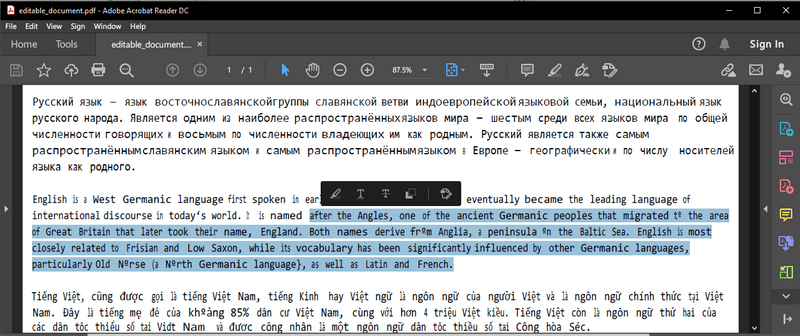
The conversion result will look like this:
ImageLoadOptions contains the following properties
OnlyText - leave only the text and delete the picture;
TransparentText - makes the text invisible, but it can be selected / copied or searched;
If OCR fails then the OCREnabled property will be false. Perhaps any dependency was not added or the data file was not found.
Here are the sources for a working example code. The Link(…)
How it works (pdf to docx):
By analogy with the image, using “Document .Net”, you can recognize PDF documents with scanned text and transform them into editable. To do this, you need to specify the “PdfLoadOptions.OCROptions.OCRMode” property
                    // PdfLoadOptions (plo) includes: OCRMode, TesseractDataPath, TesseractLanguage, etc
            PdfLoadOptions plo = new PdfLoadOptions();

// OCRMode.Enabled = true (OCR will work); OCRMode.Enabled = false (the result will be like image inside);
            plo.OCROptions.OCRMode = OCRMode.Enabled;
            // Our scanned document contains text in English, Russian and Vietnamese
            plo.OCROptions.TesseractLanguage = "eng+rus+vie";
            // Path for the folder with language files (signatures)
            plo.OCROptions.TesseractDataPath = @"d:\download\tessdata";
In this example, the scanned PDF will be loaded with the OCR option enabled and saved to a docx file.
using System;
using SautinSoft;
using SautinSoft.Document;

namespace Tesseract
{
    class Program
    {
        ///
        /// Convert scanned document in editable (file to file).
        ///
		///
        /// Details: https://sautinsoft.com/products/document/help/net/developer-guide/ocr.php
        ///
        static void Main(string[] args)
        {

            // PdfLoadOptions (plo) includes: OCRMode, TesseractDataPath, TesseractLanguage, etc
            PdfLoadOptions plo = new PdfLoadOptions();

            // OCRMode.Enabled = true (OCR will work); OCRMode.Enabled = false (the result will be like image inside);
            plo.OCROptions.OCRMode = OCRMode.Enabled;
            // Our scanned document contains text in English, Russian and Vietnamese
            plo.OCROptions.TesseractLanguage = "eng+rus+vie";
            // Path for the folder with language files (signatures)
            plo.OCROptions.TesseractDataPath = @"d:\download\tessdata";

            string pdfFile = @"d:\Download\scanned_pdf.pdf";
            string docxFile = @"d:\Download\editable_docx.docx";

            // Load a scanned document (pdf).
            DocumentCore dcFromPdf = DocumentCore.Load(pdfFile, plo);
            // Save the result into DOCX format.
            dcFromPdf.Save(docxFile);

            // Open the result for demonstration purposes.
            System.Diagnostics.Process.Start(new System.Diagnostics.ProcessStartInfo(docxFile) { UseShellExecute = true });
        }
    }
}
OCR works according to a very complex algorithm and there are many factors affecting the result, I would like to note the important ones:
- The size of the characters, i.e. letters should be with good resolution.
- Baseline, i.e. arc lines or curved symbols are less well recognized.
- Clarity, i.e. ideally black and white. Gradient text is unlikely to be recognized. The conversion result will look like this:
![]()
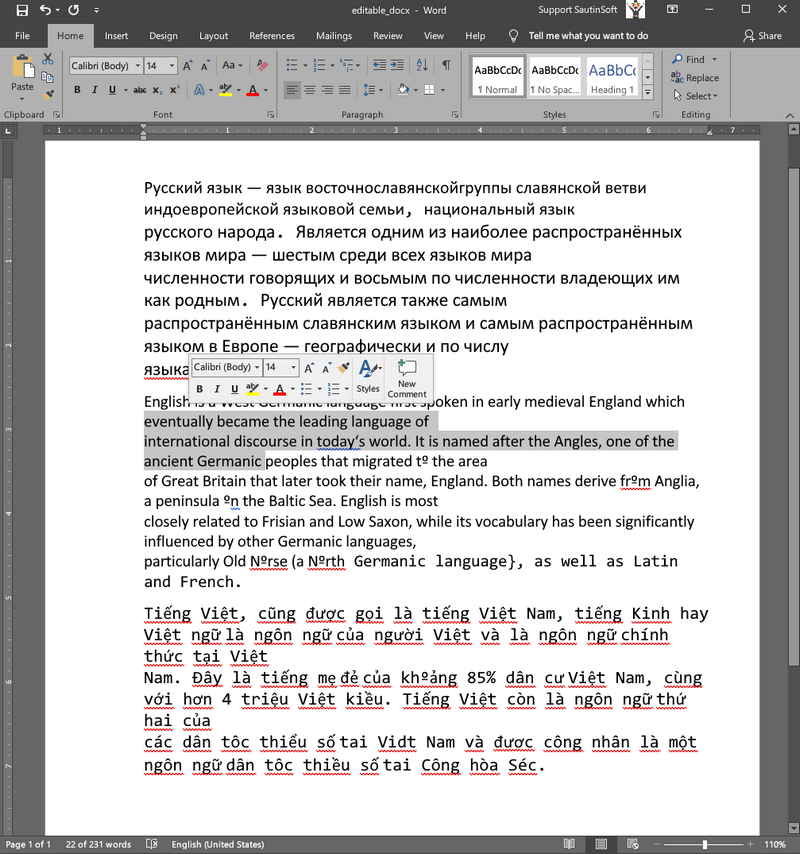
Recognition errors are permissible because ⃝ can be recognized as “o”,“O”,“0”, or it is a circle pattern.
Hope Tesseract and SautinSoft.Document helps you solve your tasks.
If you need a new code example or have a question: email us at support@sautinsoft.com or ask at Online Chat (right-bottom corner of this page) or use the Form below: