How to set HTML version in C# and .NET
When automatically converting documents from RTF or other formats to HTML, an important task arises: setting the HTML version to ensure compatibility, correct display, and compliance with modern standards. In this guide, we'll detail how to set the HTML version in a C#/.NET environment using the component RTF TO HTML .NET from SautinSoft SDK. We'll also explore the advantages of this approach, practical use cases, and why such configuration is important.
When generating HTML, it's important to determine the specifics of the document, its compatibility with browsers and standards. The choice of version directly affects the structure of the returned code, the tags, attributes, and semantics used.
Let's look at the capabilities of these versions:
- HTML 3.2: supported by several popular browsers, standardization of tables, applets, and text layout around images, support for meta information.
- HTML 4.01: introduction of Cascading Style Sheets (CSS), improved support for multimedia elements, introduction of the id and class attributes, and the ability to add tooltip text.
- HTML5: multimedia integration, new semantic tags, improved form, cross-platform support, new APIs.
Practical benefits of setting up an HTML version:
- Compatibility with existing infrastructure: for projects where stable output is essential, use HTML4.01.
- Leveraging new features: HTML5 supports semantic tags (`section`, `article`, `nav`) and multimedia.
- Optimizing loading speed: HTML5 allows for lighter, more modern code.
Why would setting up an HTML version be useful?
- Web startups – to ensure modern, responsive code.
- Integration with CMS systems or portals where standards compliance is essential.
- Automated document management processes where the HTML structure must conform to templates.
- Exporting written reports with correct markup is required.
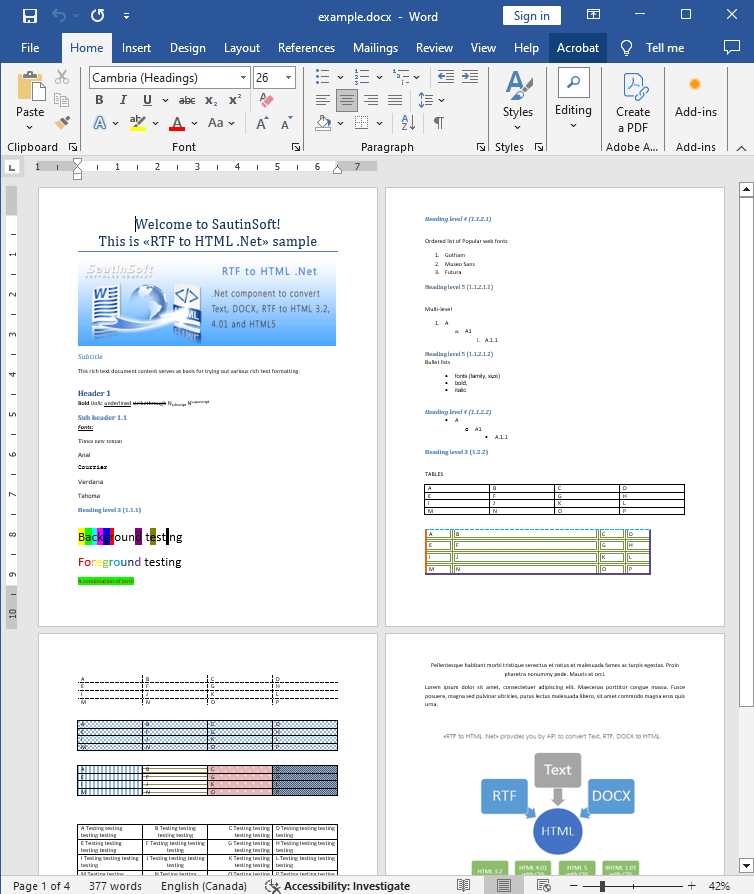
Input file:
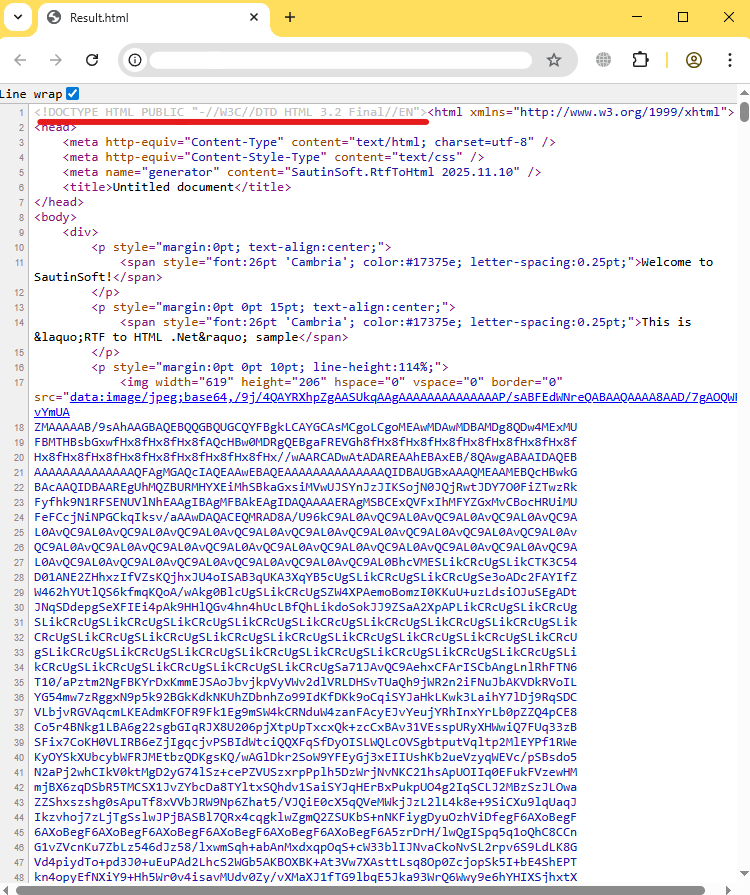
Output result:
Complete code
 GitHub
using System;
using System.Collections.Generic;
using System.Linq;
using System.Text;
using System.IO;
using SautinSoft;
namespace Example
{
class Program
{
static void Main(string[] args)
{
SetHtmlVersion();
}
/// <summary>
/// This sample shows how to set HTML version: xhtml, html5, html401, html32.
/// </summary>
static void SetHtmlVersion()
{
string inpFile = @"..\..\..\example.docx";
string outFile = @"Result.html";
RtfToHtml r = new RtfToHtml();
// Let's convert to the HTML 3.2
RtfToHtml.HtmlFlowingSaveOptions opt = new RtfToHtml.HtmlFlowingSaveOptions()
{
Version = RtfToHtml.HtmlVersion.Html32
};
try
{
r.Convert(inpFile, outFile, opt);
}
catch (Exception ex)
{
Console.WriteLine($"Conversion failed! {ex.Message}");
}
// Open the result.
System.Diagnostics.Process.Start(new System.Diagnostics.ProcessStartInfo(outFile) { UseShellExecute = true });
}
}
}Imports System
Imports System.Collections.Generic
Imports System.Linq
Imports System.Text
Imports System.IO
Imports SautinSoft
Namespace Example
Friend Class Program
Shared Sub Main(ByVal args() As String)
SetHtmlVersion()
End Sub
''' <summary>
''' This sample shows how to set HTML version: xhtml, html5, html401, html32.
''' </summary>
Private Shared Sub SetHtmlVersion()
Dim inpFile As String = "..\..\..\example.docx"
Dim outFile As String = "Result.html"
Dim r As New RtfToHtml()
' Let's convert to the HTML 3.2
Dim opt As New RtfToHtml.HtmlFlowingSaveOptions() With {.Version = RtfToHtml.HtmlVersion.Html32}
Try
r.Convert(inpFile, outFile, opt)
Catch ex As Exception
Console.WriteLine($"Conversion failed! {ex.Message}")
End Try
' Open the result.
System.Diagnostics.Process.Start(New System.Diagnostics.ProcessStartInfo(outFile) With {.UseShellExecute = True})
End Sub
End Class
End Namespace
If you need a new code example or have a question: email us at support@sautinsoft.com or ask at Online Chat (right-bottom corner of this page).