Convert to HTML specifying the list export mode in C# and .NET
Working with various document formats is an important aspect of modern application development. The need to convert documents to formats more
compatible with web technologies, such as from RTF (Rich Text Format) to HTML, is particularly common. In this eighth edition, the
component RTF TO HTML .NET
from SautinSoft SDK provides powerful tools for solving such problems.
One important feature during conversion is the ability to control list export modes, which directly impacts the visual use of structured data,
such as numbered and bulleted lists.
The list export mode is a setting that specifies how the library converts from RTF to HTML. For example, you can choose to use standard HTML tags such as ul, ol, and p, or use more restrictive or cleaner modes, preserving minimal tags or special styles.
Properly setting the export mode allows you to:
- Preserve document complexity, which is especially important when creating presentable web pages or for automated data processing.
- Simplify subsequent processing, for example, for SEO or responsive design.
- Ensure consistency when automatically outputting large numbers of documents.
Practical applications:
- Create a system for generating web reports from RTF documents.
- Implement document flow.
- Prepare updates for CMS or websites while maintaining the structure of lists.
- Convert an archive or document database to HTML for display or search.
Interesting aspects and recommendations:
- Configure the export mode: Experiment with different modes to find the one that best suits your needs.
- Error handling: Be sure to implement input validation and exception handling.
- Performance: When processing large volumes of documents, use streaming methods or asynchronous operations.
- Automation: Integrate the code into document processing systems or web services for mass conversion.
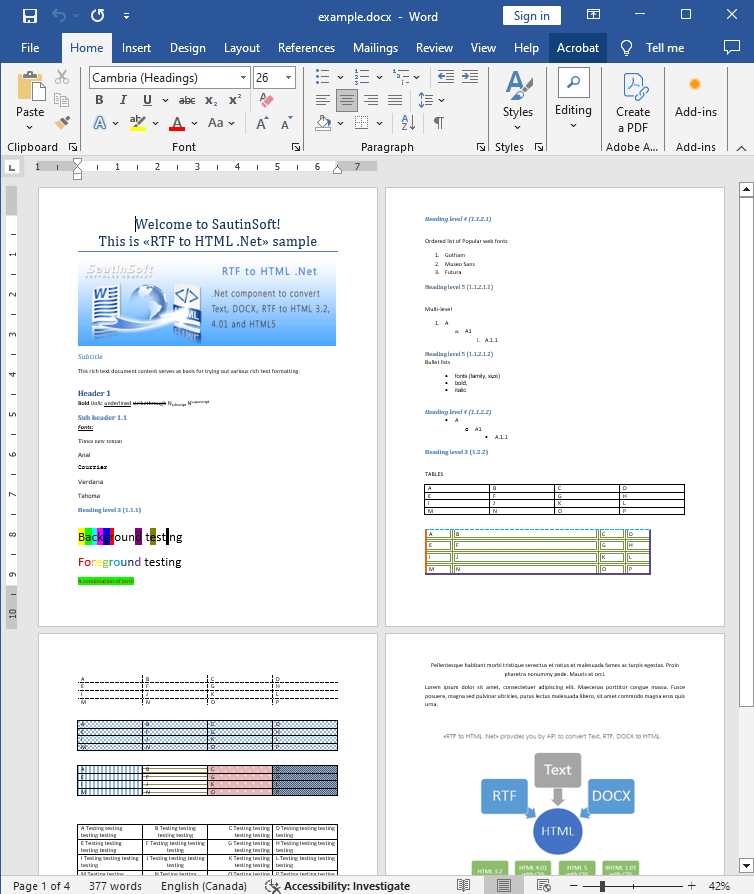
Input file:
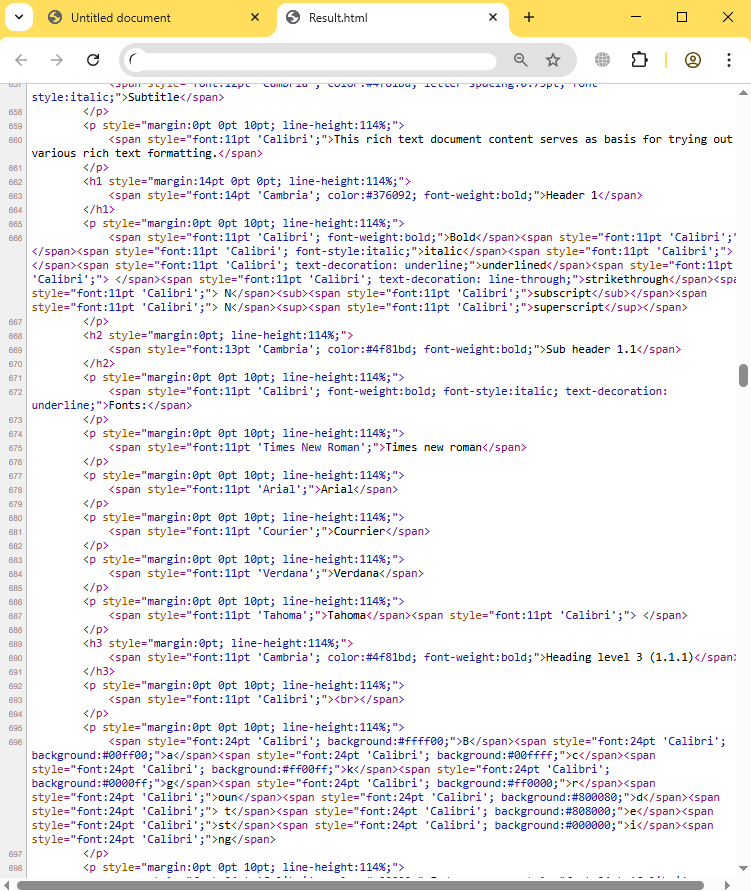
Output result:
Complete code
 GitHub
using System;
using System.Collections.Generic;
using System.Linq;
using System.Text;
using System.IO;
using SautinSoft;
namespace Example
{
class Program
{
static void Main(string[] args)
{
ListExportMode();
}
/// <summary>
/// This sample shows how to specify list export mode.
/// </summary>
static void ListExportMode()
{
string inpFile = @"..\..\..\example.docx";
string outFile = @"Result.html";
RtfToHtml r = new RtfToHtml();
// Use <p> tags for list elements.
RtfToHtml.HtmlFlowingSaveOptions opt = new RtfToHtml.HtmlFlowingSaveOptions()
{
ListExportMode = RtfToHtml.HtmlListExportMode.AsInlineText
};
try
{
r.Convert(inpFile, outFile, opt);
}
catch (Exception ex)
{
Console.WriteLine($"Conversion failed! {ex.Message}");
}
// Open the result.
System.Diagnostics.Process.Start(new System.Diagnostics.ProcessStartInfo(outFile) { UseShellExecute = true });
}
}
}Imports System
Imports System.Collections.Generic
Imports System.Linq
Imports System.Text
Imports System.IO
Imports SautinSoft
Namespace Example
Friend Class Program
Shared Sub Main(ByVal args() As String)
ListExportMode()
End Sub
''' <summary>
''' This sample shows how to specify list export mode.
''' </summary>
Private Shared Sub ListExportMode()
Dim inpFile As String = "..\..\..\example.docx"
Dim outFile As String = "Result.html"
Dim r As New RtfToHtml()
' Use <p> tags for list elements.
Dim opt As New RtfToHtml.HtmlFlowingSaveOptions() With {.ListExportMode = RtfToHtml.HtmlListExportMode.AsInlineText}
Try
r.Convert(inpFile, outFile, opt)
Catch ex As Exception
Console.WriteLine($"Conversion failed! {ex.Message}")
End Try
' Open the result.
System.Diagnostics.Process.Start(New System.Diagnostics.ProcessStartInfo(outFile) With {.UseShellExecute = True})
End Sub
End Class
End Namespace
If you need a new code example or have a question: email us at support@sautinsoft.com or ask at Online Chat (right-bottom corner of this page).